In a quest for personal improvement, and due to a project, I decided to start playing a bit more with the Omnissa Horizon RESTful API. I had done some work with the old SOAP API and PowerShell but it was time to level up!
When getting started with the Horizon Server API, there are a slew of fantastic resources available on the Omnissa website. I highly recommend looking them over before you begin.
Horizon Server API Documentation
The first thing you can do is point a browser to your Horizon Connection Server and take a look around. Go to https://your-horizon-server-FQDN/rest/swagger-ui/index.html

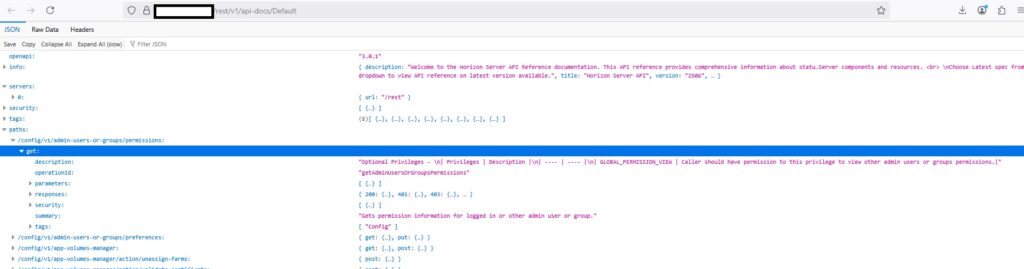
Alternatively, you can go to your Horizon Connection Server’s built-in API documentation at https://your-horizon-server-FQDN/rest/v1/api-docs/Default
OK. What is the first thing that you need to do when you need to work against the Horizon API? First thing is to authenticate! Here is a code snippet that will authenticate you against the /rest/login endpoint. Of course, some of these variables need to exist ahead of time. They can be defined earlier in your script. If you don’t have a legit SSL certificate, feel free to un-remark the -SkipCertificateCheck line.
$authUri = "$connectionServer/rest/login"

    $body = @{
    username = $username
    password = $password
    domain   = $domain
    } | ConvertTo-Json

    $response = Invoke-RestMethod -Method Post -Uri $authUri `
    -Body $body `
    -ContentType "application/json" `
    # -SkipCertificateCheck
    # Extract token

    $token = $response.access_token
# Test to see if a valid token exists
$tokenvaliditytest = @()
$tokenvaliditytest = Invoke-RestMethod -Method Get -Uri $connectionServer/rest/monitor/connection-servers -Headers @{
    "Authorization" = "Bearer $token"
    "Accept"        = "application/json"
} # -SkipCertificateCheck

Write-Host "Validating token"
if ($tokenValidityTest.status -ne "OK") {
    Write-Host "Token invalid - Re-authenticating" -ForegroundColor Yellow
    $creds = Get-Credential -Message "Enter Horizon admin credentials"
    # Define Connection Server
    $connectionServer = "https://connection-server-fqdn"
    $domain = "your.domain.local"     # Your AD domain

    # Extract real username + password
    $username = $creds.UserName
    $password = $creds.GetNetworkCredential().Password

# If user typed DOMAIN\username, split it
    if ($username -match "\\") {
    $domain, $username = $username -split "\\", 2
    }

# Step 1: Authenticate with JSON body including domain
    $authUri = "$connectionServer/rest/login"   # If this works for you, keep it.
    $body = @{
    username = $username
    password = $password
    domain   = $domain
    } | ConvertTo-Json

    $response = Invoke-RestMethod -Method Post -Uri $authUri `
    -Body $body `
    -ContentType "application/json" `
    # -SkipCertificateCheck
    # Extract token
    $token = $response.access_token

}
If your token is valid, it will not run the authentication piece and you will be able to simply use the REST API after the last curly bracket. I hope this helps!
One thought on “Getting Started with the Omnissa Horizon REST API – Logging in”