This is a continuation of my vSphere 8 to VVF 9 series. The first post was right here https://www.vmatt.net/2026/01/17/vsphere-8-to-vvf-9-migration-part-1/
This post will talk about:
- Updating ESXi from 8.0U3 to 9.0.1
- Deploying VCF 9 Operations for Logs
- Integrating your vSphere 9 environment with VCF 9 Operations for Logs
- Integrating VCF 9 Operations with VCF 9 Operations for Logs
I created a YouTube video here https://www.youtube.com/watch?v=uaujMbddCd0 that covers it in real-time.
First, you will want to download the VMware-ESXi-9.0.1.0.24957456-depot.zip file from Broadcom’s website using your credentials. If you have VMUG Advantage and a valid Broadcom account and entitlement linked to it, you have access to the file.
Within Lifecycle Manager, you will then import the .zip file you downloaded.
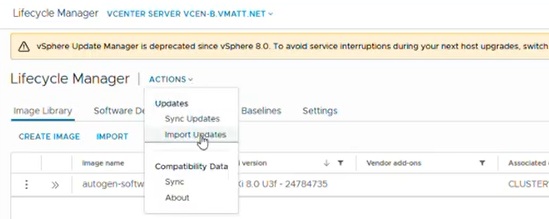
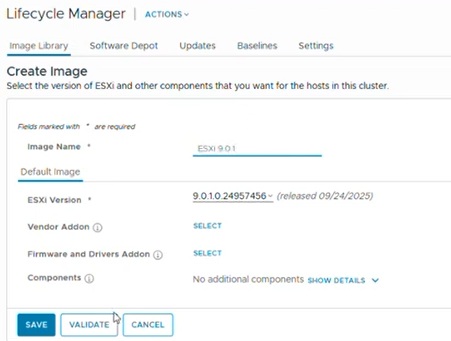
Once imported, click CREATE IMAGE, and under Default Image, chose the newly imported ESXi version.
Next we will do a STAGE operation. Click on your cluster, and go to Image Compliance. It should do a quick pre-check, which will show you are out of compliance for your new image.
Select all hosts in your cluster (or if you want to do them one-at-a-time, select the ones you want to update). Click STAGE (ALL).
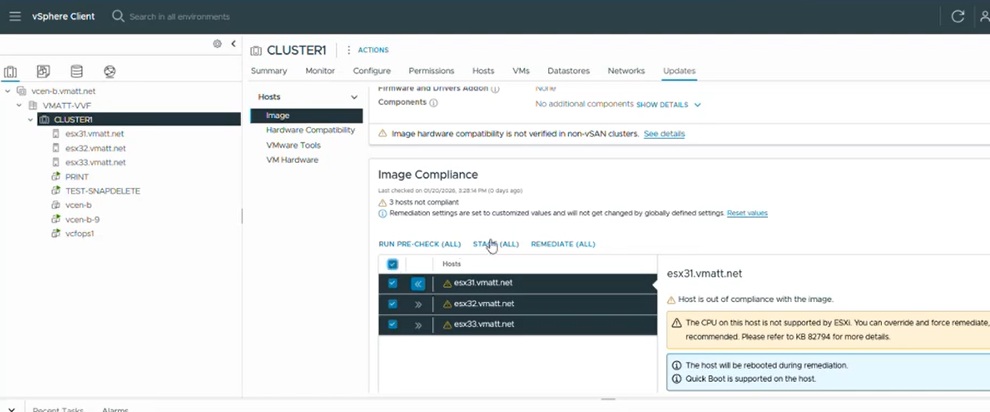
Lastly, once it is all staged, it will do another compliance check, and then you can choose REMEDIATE (ALL).
Now that ESXi is upgraded, let’s move on to VCF 9 Operations for Logs. On your Broadcom portal, download the 9.0.1 Operations for Logs Appliance. The filename will be something like Operations-Logs-Appliance-9.0.1.0.24960345.ova
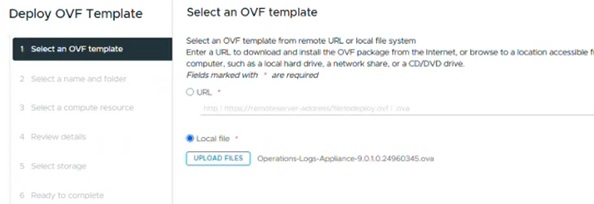
Enter a VM name, select your VVF cluster for deployment. My download had an expired certificate so feel free to ignore that. Select an appliance size. For a lab, Extra Small is fine (20 ESXi hosts or less and 200 events/second or less). I selected the Small size (200 ESXi hosts or less and 2000 events/second). If you are in need of a larger size, you are probably not a VVF customer!
Then, select your storage, network port group, your networking information, and let it go. My small appliance took 6 minutes to deploy and come online.
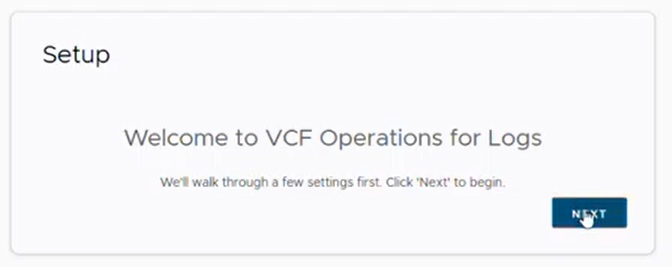
We will start a new deployment, enter your e-mail address, admin credentials, some system notification contact information, NTP information, SMTP server information for notifications to be sent with. Now we are ready to integrate vSphere with VCF 9 Operations for Logs!
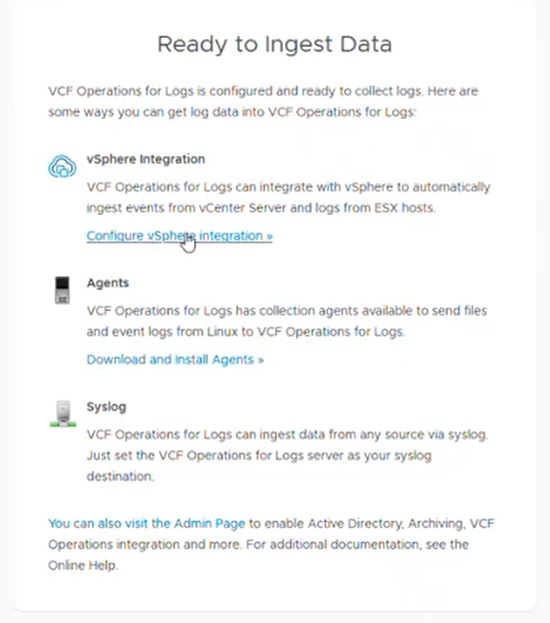
We will click ADD VCENTER SERVER, enter the host name, username, password, and any tags you would like added for events with this vCenter. Select your target logs server and test your connection.
The next section is where you can integrate ESXi hosts’ syslog settings. It will automatically make the changes to Syslog.global.logHost on all ESXi hosts in your environment so logs are sent to VCF 9 Operations for Logs.
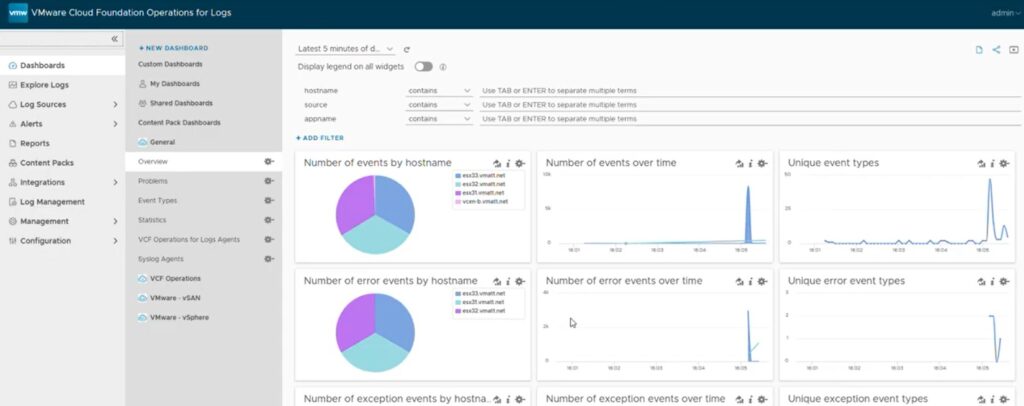
Click on your Dashboards page and you will see logs starting to flow.
The last part is to integrate our VCF 9 Operations environment with VCF 9 Operations for Logs. Log on to VCF Operations and click on Administration, and Control Panel. There should be an icon for “Operations-Logs Appliance Integration”.
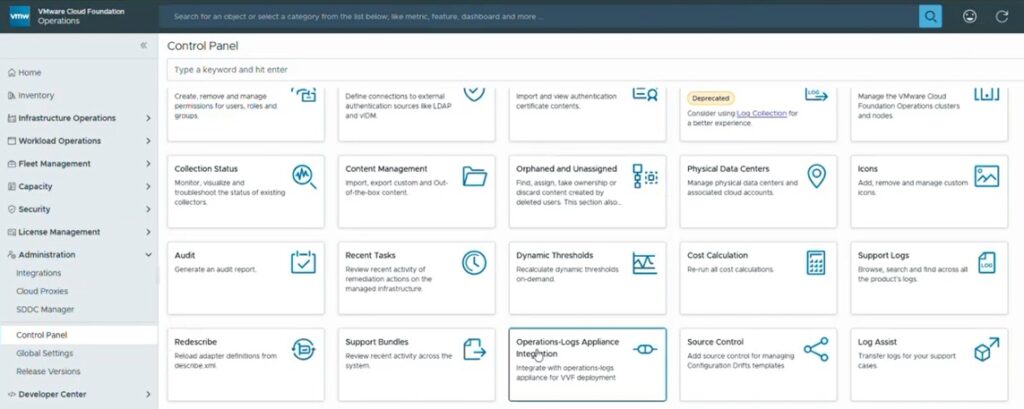
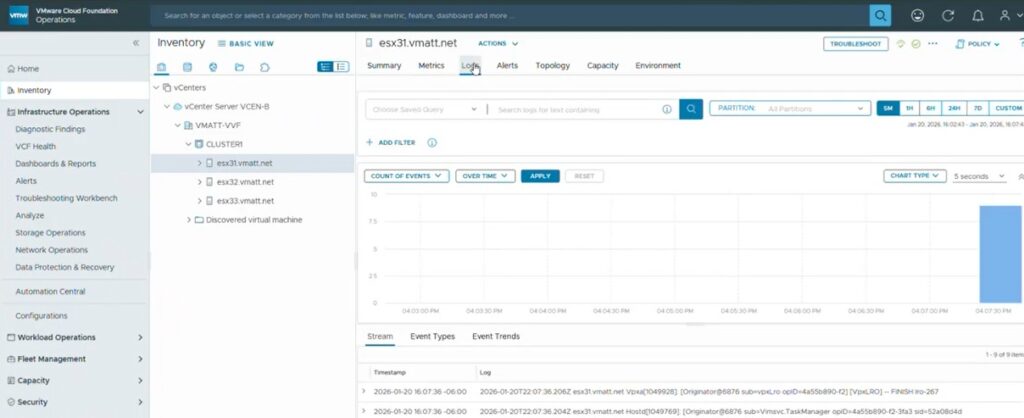
All you do is type the IP address of your Operations for Logs appliance, and type the admin username and password. Validate the connection and SAVE. When you go to an object in VCF 9 Operations, the “Logs” page is now selectable and you will see logs are appearing within VCF Operations!
That’s all for this post. I hope to get some VMware vSphere Foundation keys soon so I can show you how to connect with Broadcom’s portal and get your VVF 9 environment licensed!
Once again, feel free to watch my YouTube video covering this process at https://www.youtube.com/watch?v=uaujMbddCd0