 When you deploy VMware Cloud Foundation 9 and/or VMware vSphere Foundation 9, where do you start? You’ll want to download and deploy the new VCF Installer (formerly Cloud Builder appliance).
This appliance will connect with the Broadcom Online Depot, or an offline depot, and assist you in deploying components of each platform. If your goal is to deploy VVF, it will deploy vCenter Server 9 and VCF Operations 9. If you would like to deploy VCF, it also deploys your NSX Manager appliances, VCF Automation (optional), and if you choose, the Identity Broker appliances (optional).
This post walks through how to do it, as well as how to get your own VCF entitlement with VMUG Advantage, after you pass either the VCP-VCF Administrator or Architect exams (versions 5.2 or 9.0).
The first step will be to download the VCF 9 Installer appliance. Here is a link you can use to download the appliance: https://support.broadcom.com/group/ecx/productfiles?displayGroup=VMware%20Cloud%20Foundation%209&release=9.0.2.0&os=&servicePk=537791&language=EN&groupId=537815&viewGroup=true
You might need to log on to your support account before this link works. After that, make sure to click through to the Terms and Conditions, and Compliance Reporting Terms and Conditions, and check the box, or you won’t be able to click the “AGREE” box, and you won’t be able to download the software.
The VCF Installer appliance download is approximately 2.1GB in size. The appliance took me about 10 minutes to deploy, and another 5 minutes before the login UI showed up. Here it is, below.
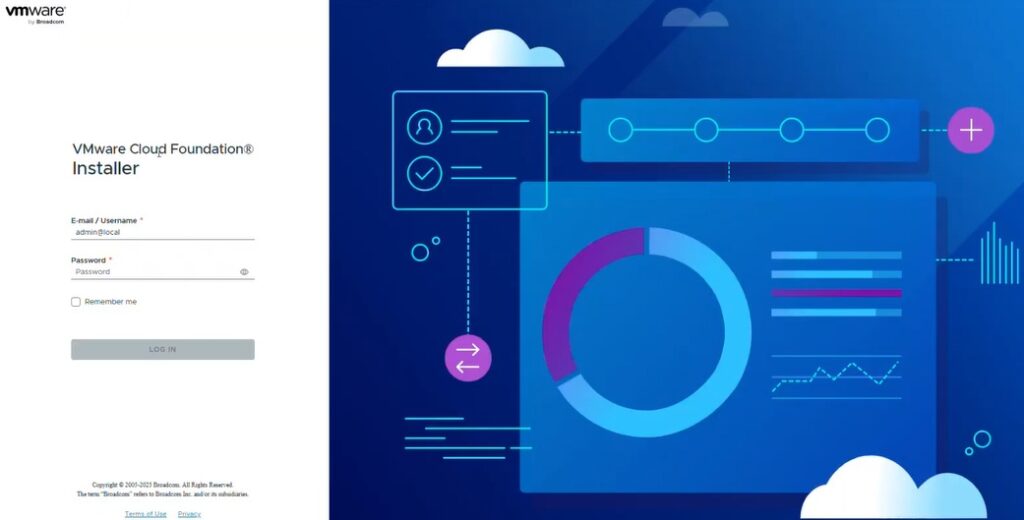
Once you log in as the admin@local account, you need to configure your depot connection. To do this, you will need a download token from your Broadcom online account. If you are a VMUG Advantage subscriber and have passed your VCP-VCF Administrator or Architect exam (either 5.2 or 9.0), you are entitled to 128 cores for non production use — and you can generate a download token for your VCF Installer appliance with it! Simply go to https://support.broadcom.com/group/ecx/alpine-certificate
…and log on using the e-mail associated with your VMUG Advantage and CertMetrics account. They all need to be the same e-mail as your Broadcom account.
Then, click back on the above link and you will get your VCP Certification Production Licenses page.
Click GENERATE TOKEN on the window below
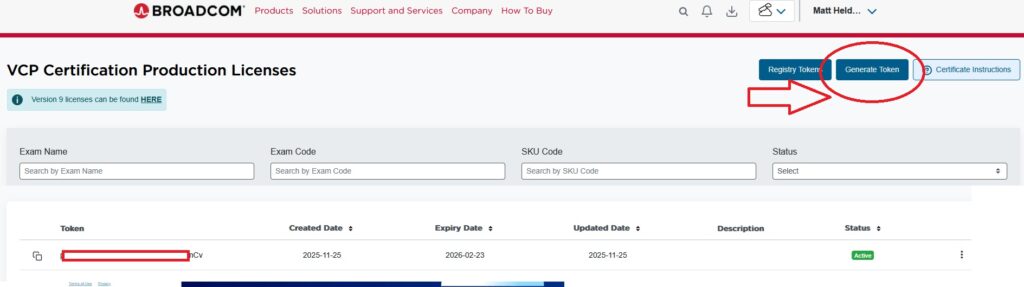
Then, copy your token after it is created to your clipboard.
Once that is done, simply go back to your VCF Installer page, go to Depot Settings, click CONFIGURE, and paste your download token / authenticate.
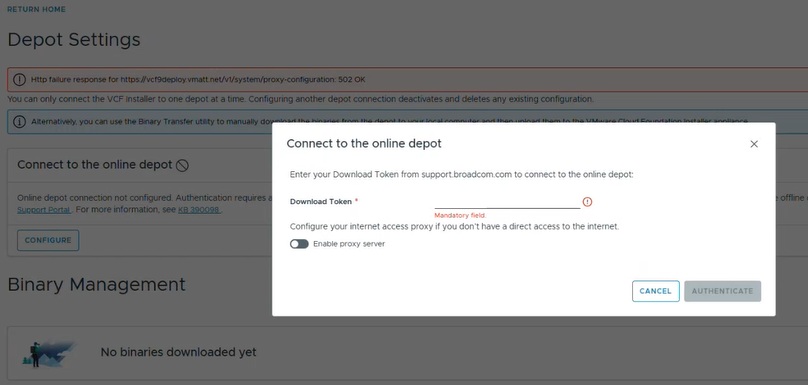
It will then initialize the binary database.
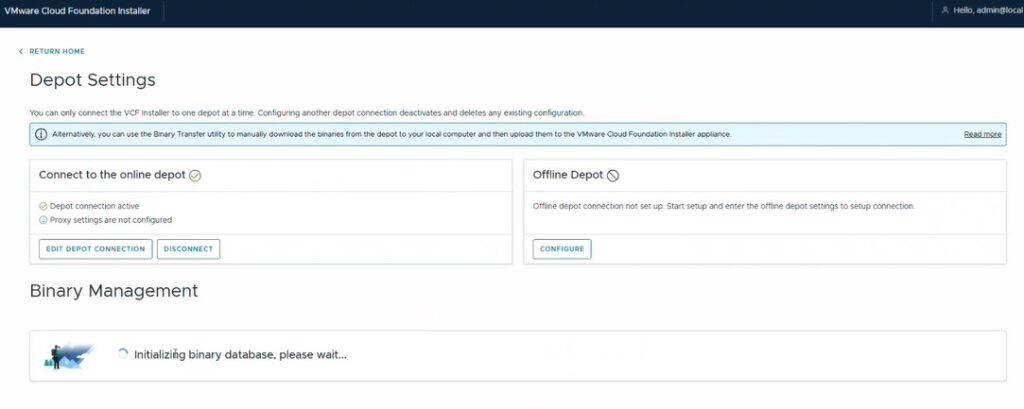
Once the binary database is initialized, select either VMware vSphere Foundation or VMware Cloud Foundation, and the version you wish to download to the VCF Installer.
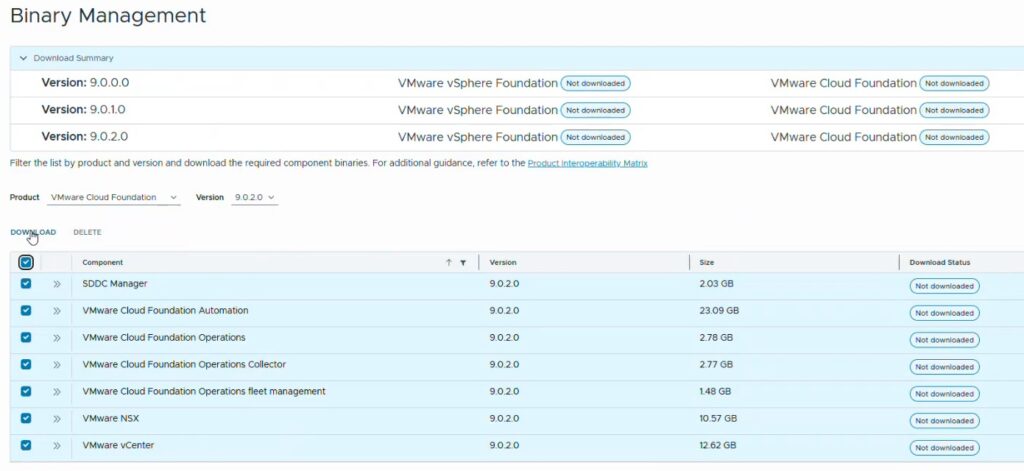
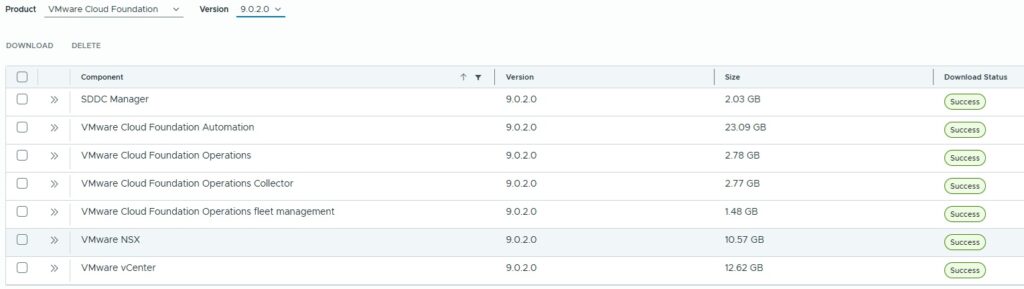
It may take a couple hours or more depending on your internet speed. Once the product and version have a Download Status of SUCCESS, you can deploy that product and version of vSphere Foundation of VMware Cloud Foundation.
Feel free to view my YouTube video on deploying this appliance and configuring it.
Additionally, I have other posts and YouTube videos on deploying:
- Greenfield VMware vSphere Foundation
- Brownfield VMware vSphere Foundation (including upgrading from vCenter 8 to vCenter 9 and importing it to VVF 9)
Enjoy!